A failed DCMA metric is a flag, not a verdict. The 14-point assessment tells you where to look, not automatically what to fix or how urgently. Treat every fail the same way and you'll waste a week rebuilding logic that was fine, or worse, wave through a negative-float chain because it sat next to nine harmless ones on the same report.
This is the practitioner half of the DCMA 14-point guide: not what the fourteen checks measure, but what to do once you've got a result in front of you. It covers running the check in Primavera P6, what the built-in report actually covers (it's less than you'd assume), and a working method for deciding what needs fixing before your deadline and what's a documented exception you can defend.
Run your own check first, free
Upload a .xer or .xml file and get an instant DCMA breakdown in your browser before you read on. Nothing is uploaded, stored or shared.
Run the free DCMA check →Step 1: Reschedule Before You Check Anything
Set the data date correctly and run the scheduler (F9) before you run any check. A DCMA result against a stale calculation tells you about last week's schedule, not this one, and every downstream number (total float, the critical path, BEI) shifts once you reschedule. This sounds obvious and gets skipped constantly, usually because someone runs the check straight after opening the file.
Step 2: Run the Built-In Check Schedule Report
In P6 Professional 22.12 and later, and in P6 Web (EPPM), choose Tools > Check Schedule Report.
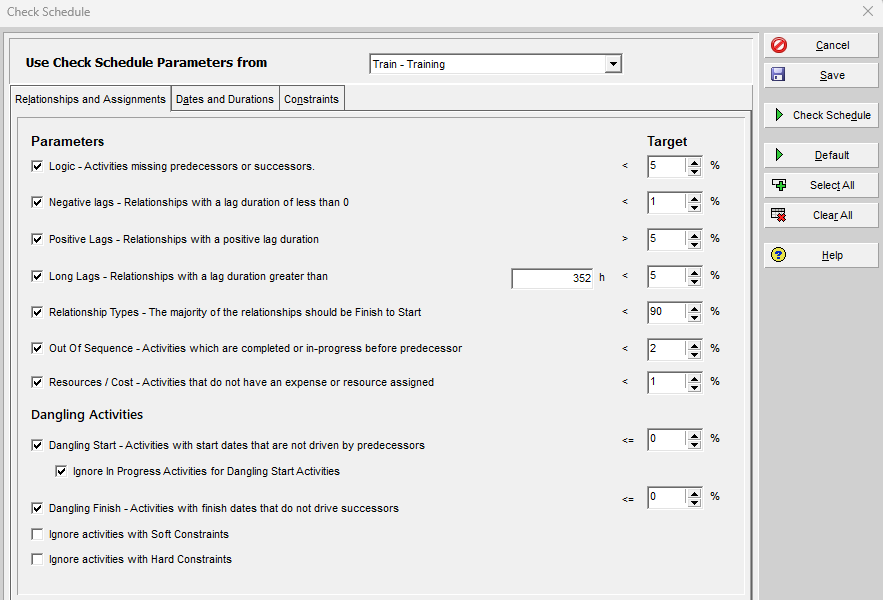
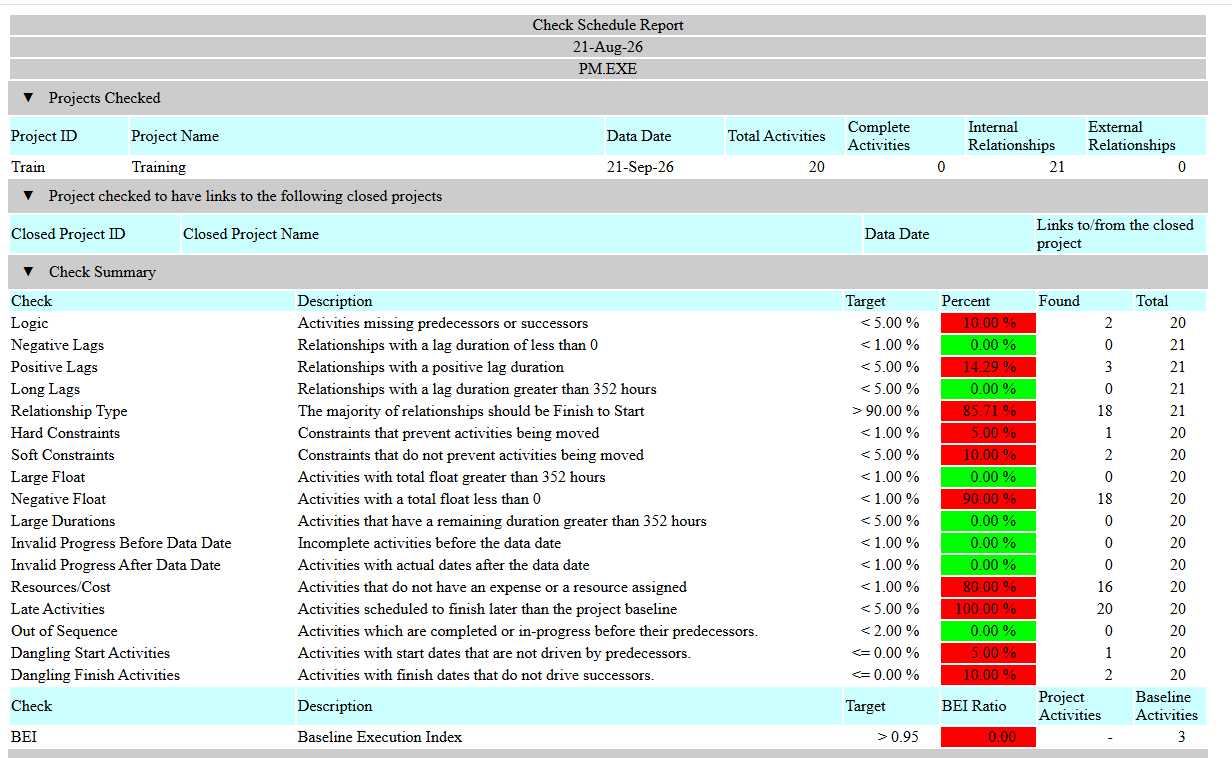
The dialog lists the checks the tool runs, each with an editable target, so confirm the targets match the thresholds your client or contract requires before you run it. Click Schedule, and a summary appears listing each check against its target, the percentage found, and the total activities examined.
In Oracle Primavera Cloud, the equivalent is the Schedule Health Score, reached from the schedule's own quality panel rather than a Tools-menu report.
Step 3: Know What the Built-In Report Doesn't Cover
This is the part most guides skip, and it's the reason a "clean" Check Schedule Report can still miss a real problem. Documented testing of P6 Professional's Check Schedule Report found it computes eleven of the fourteen DCMA metrics but not Missed Tasks, the Critical Path Test (CPT), or CPLI. It also runs three checks of its own that aren't part of the DCMA fourteen: Long Lags, Soft Constraints and Late Activities. The same testing found a BEI calculation quirk on P6 Professional that P6 EPPM computed correctly on an identical schedule.
This isn't a one-off finding on an old release. It was first documented in 2023 against P6 Professional r22.12, and independently re-confirmed for CPT and CPLI specifically nearly two years later, well past the point Oracle originally said they intended to fix it. Don't take that as permanent, either: open your own Check Schedule dialog, list the checks it actually offers, and tick them off against the fourteen in the table below. Anything missing is a manual check, not an assumption.
| DCMA metric | Typically in the built-in report | If missing, how to check it manually |
|---|---|---|
| Logic, Leads, Lags, Relationship types, Hard constraints, High float, Negative float, High duration, Invalid dates, Resources | Usually yes | Read the report's own per-check breakdown; most checks list the specific failing activities, not just a percentage |
| Missed activities (Missed Tasks) | Sometimes; the report's own "Late Activities" check covers similar but not identical ground | Filter for Finish Date later than BL Project Finish |
| Critical Path Length Index (CPLI) | Not computed | Filter to Critical activities, read total float and remaining duration, calculate by hand: (critical path length + total float) ÷ critical path length |
| Critical Path Test (CPT) | Not computed | Add a large lag (commonly 600 days) to a near-end activity, reschedule, confirm project finish moves by the same amount, then remove the lag |
Step 4: Drill Into the Activities, Not Just the Percentage
A percentage tells you that you have a problem. It doesn't tell you where, or who owns it. For most checks, the Check Schedule Report's own output drills down to the specific flagged activities under each metric, not just the summary count.
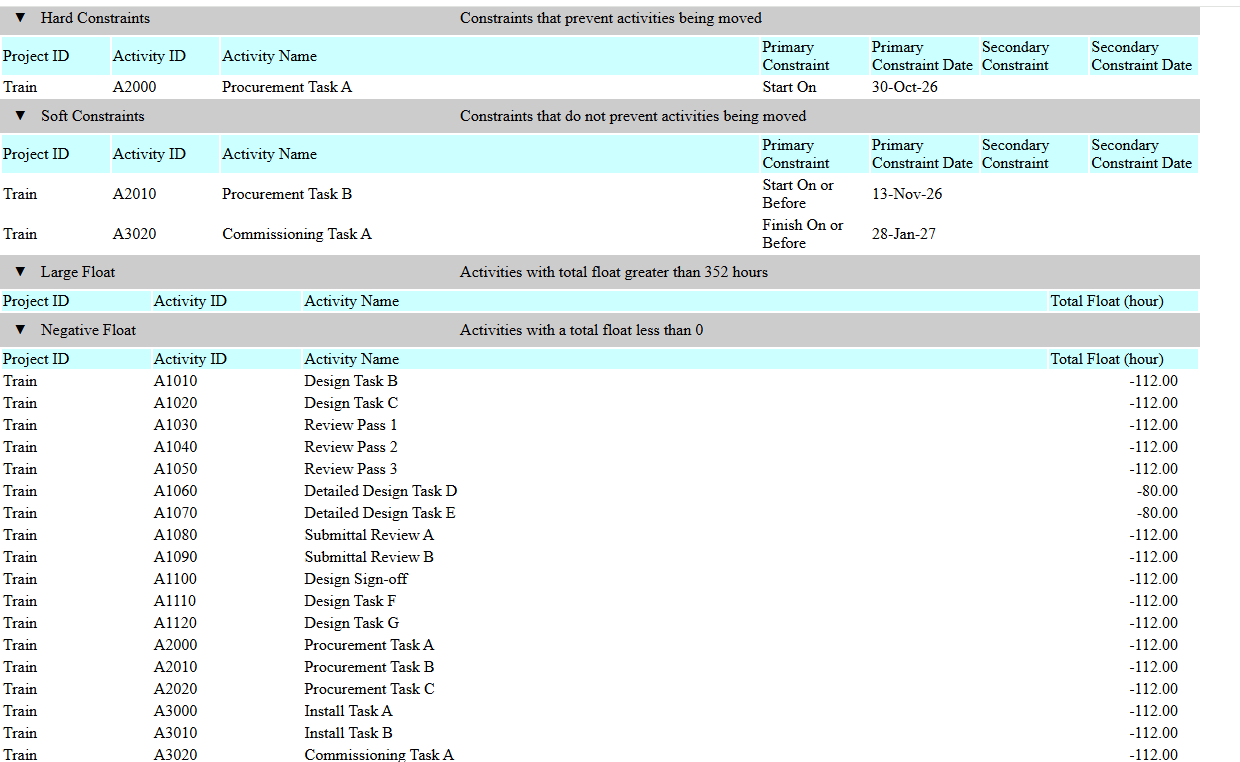
Open that breakdown before you touch anything: a 6% logic fail concentrated on three milestones at the very end of the schedule is a different conversation from the same 6% spread across your steel erection package.
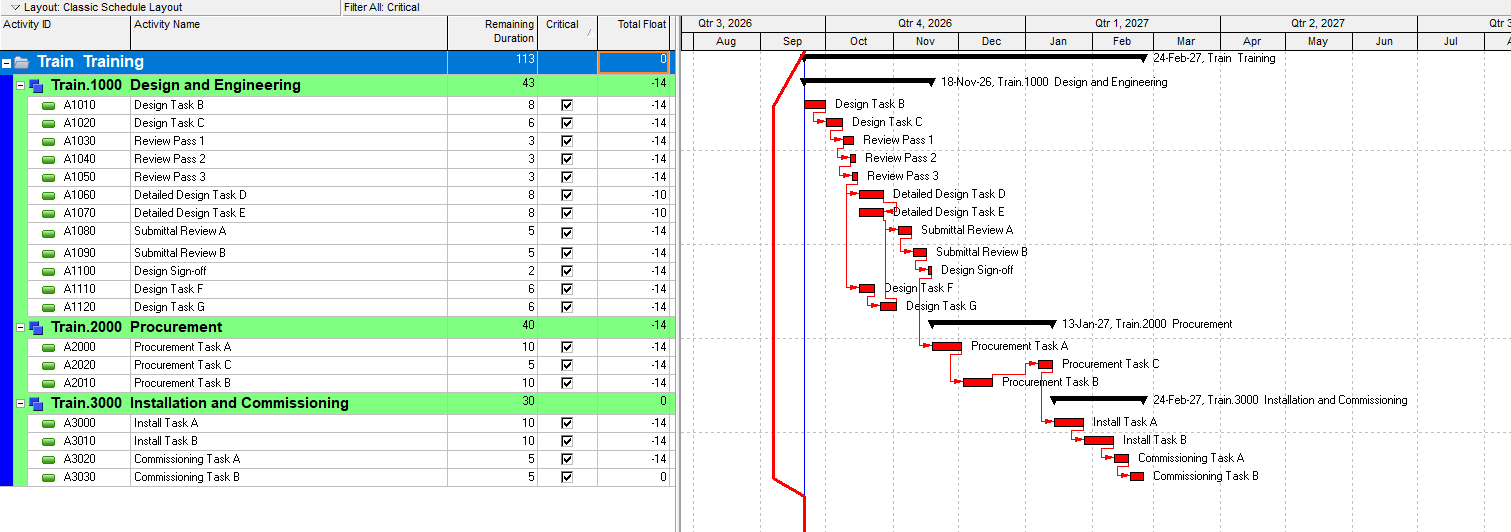
For the checks the built-in report doesn't cover, or where you need to see activities the report groups together, build the view manually. Choose View > Filter By > Customize to isolate the set you need, most usefully the built-in Critical filter for CPLI and CPT work.
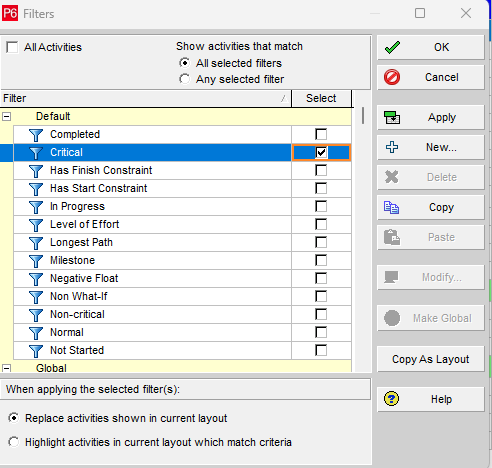
Add Total Float, Remaining Duration and Constraint Type as columns (View > Columns > Customize) so the numbers you need for a manual calculation sit in the table, then use View > Group and Sort By to cluster the results by WBS or by responsible party so the list turns into assignable actions, not just a flat table of activity IDs.
Step 5: Decide What Actually Needs Fixing
Not every fail carries the same weight. Sort what you've found into three groups before you touch the schedule.
Fix before submission. Negative float, invalid dates, and logic gaps on activities that still have remaining work. These break the critical path calculation itself, so nothing downstream (forecast dates, EOT exposure, reporting) can be trusted until they're resolved.
Fix if it's cheap, flag if it isn't. Hard constraints and high-duration activities. Often these are modelling shortcuts rather than wrong answers: someone hard-coded a date instead of building the logic, or left a summary-level activity undecomposed. Fix the ones you can before the deadline; for the rest, note the genuine reason (an externally fixed regulatory date, for instance) so a reviewer doesn't waste time re-flagging something that's actually correct.
Document, don't chase. CPLI or BEI drifting off target. These are performance signals, not build defects; they're telling you the plan and reality have diverged, which is a project controls conversation about recovery, not a scheduling fix inside the file itself.
Step 6: Note Your Exceptions Where the Next Reviewer Will See Them
If a fail is genuine and defensible, put the reason in the schedule, not in your head or an email thread that won't survive the project. A notebook topic on the activity, or a line in the Basis of Schedule submitted alongside the programme, both work. The point is that anyone reviewing the schedule after you, a client, a PMO, or you in six months, should be able to see why that constraint is there without re-investigating it from scratch.
Step 7: Re-Run After Every Fix
Fixing one metric routinely disturbs another. Removing a hard constraint can shift the critical path and create new float outliers; tightening logic on one package can push high-duration activities somewhere else. Treat the check as iterative through to submission, not a single gate you clear once and forget.
Where People Get This Wrong
The most common mistake isn't a bad fix, it's the wrong read of the report. Two failure modes come up repeatedly.
Trusting the built-in report to be the whole assessment. As Step 3 covers, it doesn't compute CPLI or CPT, and may not compute Missed Tasks either, and its BEI figure has been shown to diverge from P6 EPPM's on identical data. A schedule that shows "12 of 14 passed" in the tool might still be silent on the two metrics that matter most for your contract.
Treating every red row as equally urgent. A 6% high-duration score and a single negative-float chain running through your critical path are not the same size of problem, even though both show up as a fail. The report doesn't rank severity for you; that judgement is the actual skill in reading a DCMA result.
When to Bring in a Second Opinion
If the results are consistently marginal, or you're not confident telling a cosmetic fail from a structural one, that's the point to get an independent read rather than keep patching metric by metric under deadline pressure. Planned's Independent Schedule Assurance Review is built for exactly this: an experienced planner reads the DCMA result alongside the underlying logic and tells you which fails are real, in time to act on it before submission.
Book a Free Consultation if you'd like a senior planner to walk through your results, or run your schedule through the Free P6 Check tool first to see where you stand. If the check comes back with widespread logic failures rather than a handful of marginal misses, the next move is a rebuild, not another patching pass: see how to fix a broken P6 schedule for that.
Frequently Asked Questions
Does the P6 Check Schedule Report check all 14 DCMA metrics?
No. Documented and independently re-confirmed testing shows it doesn't compute the Critical Path Test or CPLI, and it added three checks of its own that aren't part of the DCMA set. Check your own Check Schedule dialog's list of checks against the fourteen before assuming full coverage.
What's the fastest way to find which activities are failing a specific check?
For most checks, open the Check Schedule Report's own per-check breakdown rather than the summary percentage; it lists the flagged activities directly. For checks the built-in report doesn't cover, filter to the relevant set (Critical, for CPLI and CPT work) and add the columns you need.
Is a marginal DCMA fail worth fixing before a deadline?
It depends which metric. Negative float, invalid dates and logic gaps affect whether the critical path can be trusted, so those come first regardless of deadline pressure. A marginal miss on high duration or lag count, with a documented reason, is usually safe to note and move past rather than force-fix.
How do I calculate CPLI manually if my P6 build doesn't compute it?
Filter the activity table to Critical activities, add Total Float and Remaining Duration as columns, then apply the formula: (critical path length + total float) ÷ critical path length. A result close to 1.00 means the critical path calculation is behaving as expected.
Can a schedule pass all 14 DCMA checks and still be wrong?
Yes. The assessment confirms the schedule is structurally sound enough to trust the critical path calculation. It doesn't confirm the durations, sequencing or resourcing are realistic. Treat a full pass as a starting point for review, not the end of one. A programme can clear a structural check and still keep slipping its own dates on site, which is why a new completion date proves so little on its own.