A DCMA 14-point pass tells you the schedule is structurally sound. It does not tell you the calendars are realistic, the logic reflects how the work will actually happen, or the critical path is pointing at something real. Those are the questions an independent reviewer asks next, and none of them show up in a DCMA percentage.
This is the checklist a reviewer works through in Primavera P6 once the automated numbers come back clean, or before they even get that far. It covers seven checks, the menu path for each, and the specific failure mode that lets a schedule pass DCMA while still being unfit to steer a project by.
Why a DCMA Pass Isn't the End of the Review
The DCMA 14-point assessment is a floor, not a ceiling. It was built to catch structural defects: broken logic, hard constraints, float and duration outliers. It was never designed to judge whether the plan is realistic, whether the calendars match how the site actually works, or whether the critical path is driven by real constraining work rather than an administrative afterthought parked in the wrong place.
A reviewer who stops at the DCMA score is trusting the metric to do a job it was never built for. The checks below are what fills that gap, and they take longer than running a report because most of them require reading the schedule, not just counting it.
Start with the free check
Run your .xer or .xml through the free DCMA check first. It's the fastest way to clear the structural floor before you start the manual review below.
Run the free P6 check →Step 1: Check the Calendars Before You Trust Anything Else
Every date, every float value and the whole critical path calculation sits on top of the calendars. Get this wrong and everything downstream is wrong too, even if it looks fine.
Choose Enterprise > Calendars, then check the Global and Project calendars against how the site actually works: working days, shift patterns, and national and site-specific holidays.
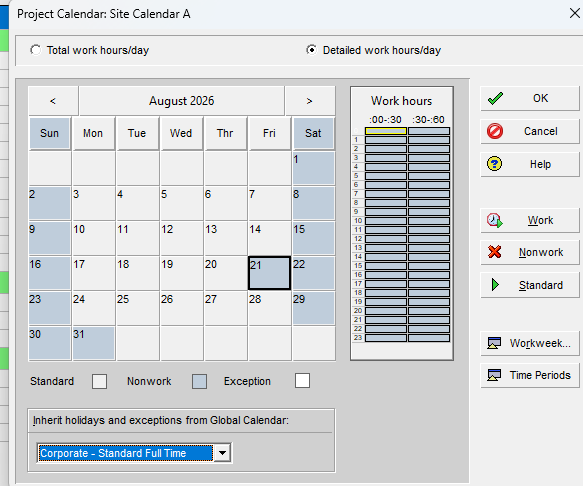
A schedule inherited from a template often carries a generic five-day week with no local holidays, which silently inflates float on every activity and can hide a genuine problem behind a comfortable-looking number.
Failure mode: a six-day working site scheduled on a five-day calendar. Every float value in the schedule reads more comfortable than reality, and DCMA's float checks will happily pass a schedule that's actually tight.
Step 2: Check the WBS and Coding Structure for Coverage, Not Just Presence
Group the Activities table by WBS (right-click the table, Group and Sort By, choose WBS) and look at how the work is actually distributed across it.
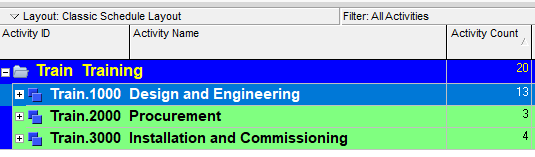
DCMA doesn't check this at all; a schedule can pass every one of the 14 metrics with three hundred activities sitting under one generic "Works" node and no way to filter by trade, package or responsible party.
Check for a catch-all node holding a disproportionate share of the schedule, missing discipline or responsibility coding, and WBS levels that don't match how the contract or the client actually wants to report progress.
Failure mode: a DCMA-clean schedule that's operationally useless because nobody can filter it by trade to hand a package to a subcontractor or report progress the way the client's PMO expects.
Step 3: Read the Logic, Don't Just Count It
DCMA counts open ends and lag percentages. It doesn't read what the logic actually says. Open View > Show on Top > Activity Network and trace the driving path through a package by eye, looking for three specific patterns:
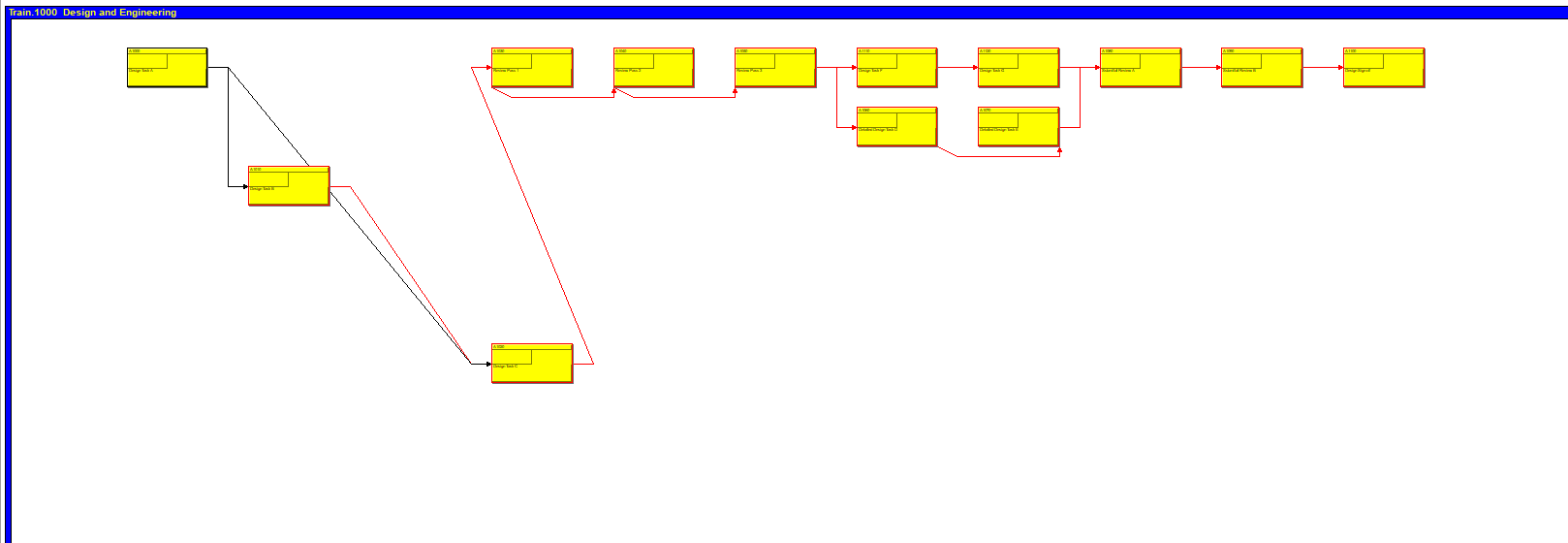
- Redundant relationships: an activity tied directly to both its immediate predecessor and that predecessor's predecessor, which adds nothing but clutters the network and can mask which link is actually driving.
- Ladder logic: a single task split into ten sequential slivers purely to create the appearance of detailed planning, when a single activity with a realistic duration would model the work just as well and be easier to progress.
- Unbalanced Start-to-Start pairs: a Start-to-Start relationship with no matching Finish-to-Finish, which can let a successor's finish float free of when the predecessor's work is actually done.
Failure mode: logic that passes DCMA's open-ends and lag counts but doesn't represent how the work will genuinely be sequenced on site, so the critical path calculation is technically valid and practically fictional.
Step 4: Trace Every Constraint Back to a Source
DCMA flags constraints over a percentage threshold. It has no way to check whether an individual constraint is right. Filter the Activities table to show only constrained activities, with Constraint Type and Constraint Date added as columns (right-click, Columns, then Customize), and check every one against the contract or a documented client instruction.
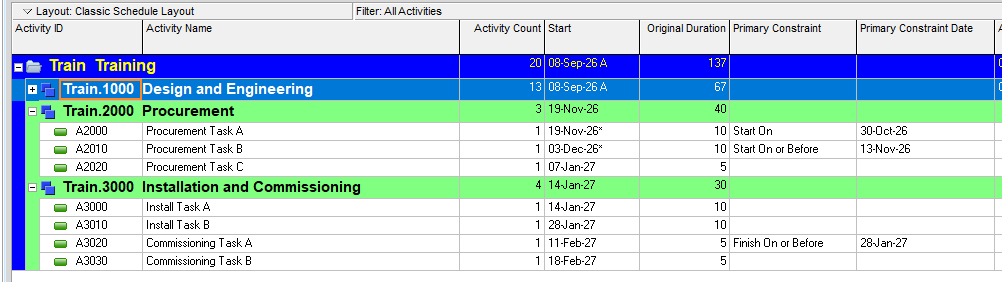
Failure mode: a Mandatory Finish constraint copied forward from an earlier baseline that no longer matches the current programme, sitting quietly inside DCMA's 5% tolerance and overriding the network logic in a way nobody's checked in months.
Step 5: Check Resource and Cost Loading for Realism
DCMA's Resources check only confirms something is assigned to an incomplete activity. It says nothing about whether the assignment is credible. Choose View > Show on Bottom > Resource Usage Profile and look at the shape of the demand: a flat, unchanging line across a schedule with genuinely varying work content, or a spike that assumes far more crew than the project has ever mobilised.
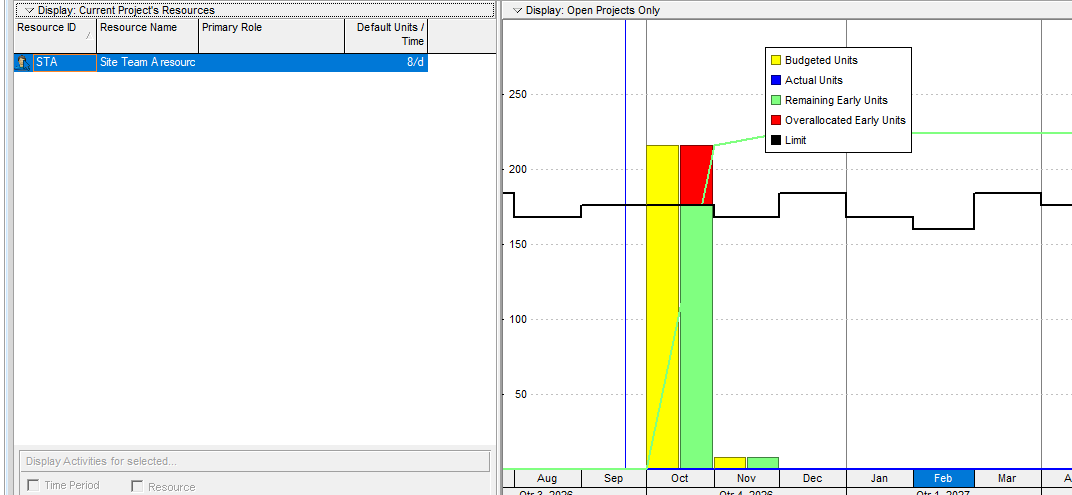
Failure mode: a schedule that's technically "resourced" for the purposes of passing the check, with placeholder allocations nobody has ever compared against the actual available headcount.
Step 6: Compare Against the Baseline and Look for a Reset
Choose Project > Assign Baselines to confirm which baseline the schedule is actually being measured against, then add BL Project Finish, Finish and a variance column to the Activities table.
| What you see | What it usually means |
|---|---|
| Consistent, believable variance across activities | Genuine progress against a stable baseline |
| Zero variance across almost everything | Either the programme is running perfectly, or the baseline was reset recently and hasn't accumulated variance yet |
| A baseline creation date that doesn't match the project's actual start | The baseline has likely been reset without the change being flagged to the client |
Failure mode: a suspiciously clean variance report that isn't evidence of good delivery, it's evidence the baseline was recently reset and the schedule hasn't had time to drift from it yet.
Step 7: Sense-Check the Critical Path
Choose View > Filter By > Customize and tick the built-in Critical filter. Read down the list and ask a simple question of every activity on it: is this genuinely constraining work, or is it sitting there because nothing else in the schedule was scheduled tighter?
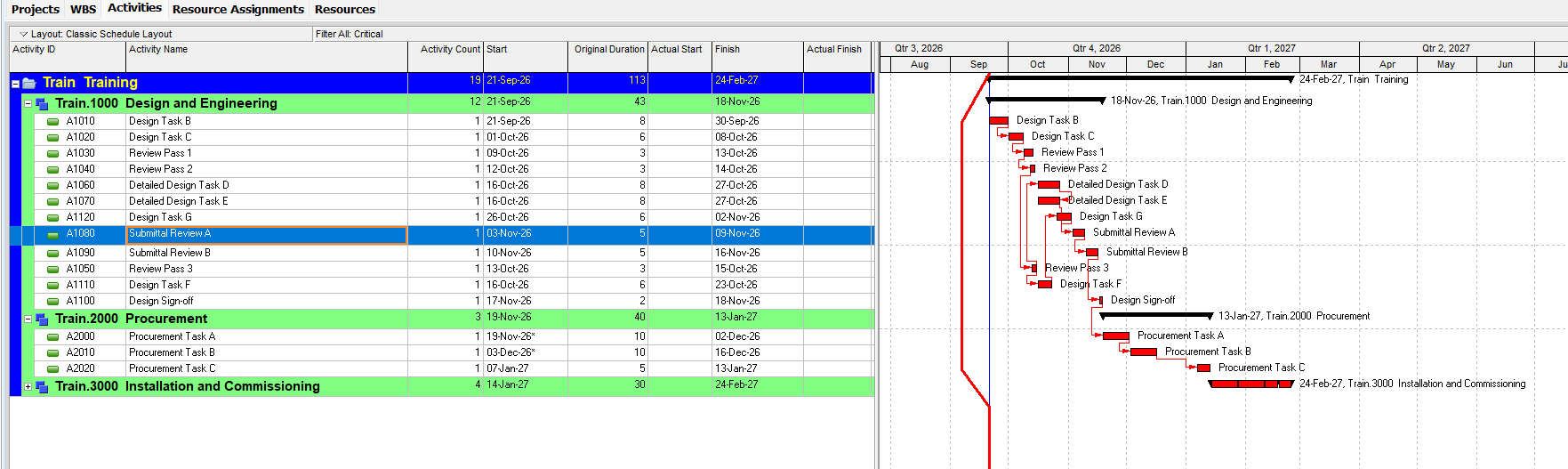
Failure mode: a critical path that snakes through submittal reviews and approval steps rather than physical construction sequence. That usually means the real constraint on the project is buried somewhere else in the schedule, with enough float to hide from every DCMA check while quietly controlling the finish date.
Putting the Findings Together
None of these seven checks produce a percentage. They produce a list of specific activities and specific reasons, which is more useful to a client or a PMO than a score, because it tells them exactly what to fix and why it matters.
If the review turns up scattered, cheap-to-fix issues, a targeted clean-up pass is usually enough. If it turns up a genuinely broken calendar, extensive ladder logic, or a critical path that doesn't reflect real work, that's a rebuild conversation, not a patching one. See how to fix a broken P6 schedule for that route.
When to Bring in a Second Opinion
This checklist takes real time to run properly, and it takes a reviewer who knows what a plausible resource profile or a defensible constraint looks like on your type of project. If you've inherited a schedule, you're about to submit one for approval, or the DCMA score came back clean but something still feels off, that's the point to get an independent read. Planned's Independent Schedule Assurance Review runs the DCMA check alongside every item on this list and tells you which findings are cosmetic and which ones actually matter before you submit.
Book a Free Consultation if you'd like a senior planner to walk through your schedule, or run it through the free P6 Check tool first to see where the automated score stands.
Where the review is being run against a client or main contractor standard rather than a general one, it is worth knowing what those standards usually contain. See what a main contractor's P6 planning specification asks for.
Frequently Asked Questions
Is a DCMA pass enough to submit a schedule with confidence?
No. It confirms the schedule clears a structural floor: logic, constraints, float and duration sit inside standard tolerances. It doesn't confirm the calendars are realistic, the logic reflects genuine site sequencing, resourcing is credible, or the critical path is driven by real constraining work. Those need a manual review on top of the automated check.
What's the single most common issue an independent review finds that DCMA misses?
Calendar assumptions inherited from a template that don't match how the site actually works. A five-day calendar on a six-day site inflates float across the entire schedule and can mask problems that would otherwise trip several DCMA checks at once.
How long does a manual schedule review like this take?
It depends on schedule size and how disciplined the coding is, but expect it to take considerably longer than running an automated check, since most of the steps involve reading the logic and tracing individual activities rather than reading a summary percentage.
Do I need Primavera P6 to run this checklist, or does it work in other tools?
The principles apply to any critical-path scheduling tool. The specific menu paths in this guide are for P6 Professional; other tools expose the same information (calendars, logic networks, resource profiles, baselines, critical filters) through different menus.
What should I do if the review finds a critical path running through admin tasks rather than construction sequence?
Treat it as a priority finding, not a cosmetic one. It usually means the schedule's real constraint is buried elsewhere with enough float to stay invisible to both DCMA and a casual read, and the reported finish date may not reflect what's actually controlling the project.